How to Redeem a Game Code on Steam: Complete 2026 Guide
Redeeming a game code on Steam means entering a product key in the Steam client or on the Steam website so the game is added to your library for good. Open Steam, choose Add a Game, then Activate a Product on Steam, accept the agreement, paste the code, and click Next to finish.
Whether you received the code as a gift, bought it from a trusted store, or got it in a bundle, the activation steps are the same. This guide covers the desktop app, the web browser, the most common errors, and how to buy codes safely.
What Is a Steam Game Code?
A Steam game code, also called a product key or CD key, is a unique string of letters and numbers that unlocks one specific game. When you activate it, Steam adds that game to your account permanently, and the code itself is used up. Valve describes the process on its Activating a Product on Steam support page.
Keys usually come in a format such as XXXXX-XXXXX-XXXXX and are printed in capital letters, so copying and pasting is the safest way to avoid typing mistakes. Each code can normally be activated only once, after which it is tied to the account that redeemed it.
It is important to understand that a code is not the game itself but a token that unlocks it. Once redeemed, the game lives in your Steam account, not in the code. That is why you should never share a code publicly or with people you do not trust, because whoever activates it first claims the game.
How to Redeem a Code on the Steam Desktop App
The desktop client is the most common way to activate a code. First, open Steam and sign in to your account. Look at the bottom-left corner of the window and click the button labeled Add a Game, then choose Activate a Product on Steam. You can also reach the same option through the Games menu at the top of the window.
A wizard will appear. Click Next, agree to the Steam Subscriber Agreement, then type or paste your product code into the field. Click Next again, and if the code is valid, Steam confirms the activation and adds the game to your library. From there, simply click Install to download and play. The whole process usually takes less than a minute on a stable connection.
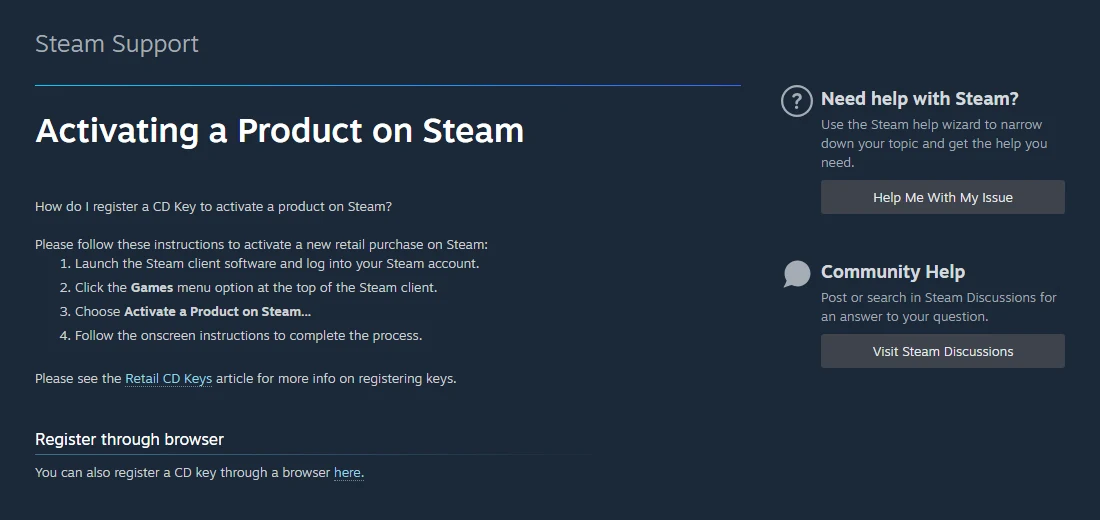
If you prefer the official order, these are the steps from Steam Support's Activating a Product on Steam page:
- Launch the Steam client and sign in to your Steam account.
- Click the Games menu at the top of the client, or the + Add a Game button in the bottom left.
- Choose Activate a Product on Steam.
- Follow the on-screen instructions until the game appears in your library.
How to Redeem a Code on the Web and Mobile
If you are not at your computer, you can still activate a code through a web browser. Sign in on Steam's official product activation page, enter the code there, and the game will be added to your library so you can install it later on any device where you are signed in.
The Steam mobile app can also help you sign in and confirm your identity through Steam Guard, although activation is most reliable through the desktop client or the website. Whichever method you choose, make sure you are logged into the correct account before redeeming, because a code cannot be moved to another account once activated.
To redeem in a browser, the flow looks like this:
- Open Steam's product activation page in your browser and sign in to the right account.
- Paste the code into the field, then accept the subscriber agreement if asked.
- Continue, then open your library in the Steam client to install the game.
No account yet? Start with our guide to creating a Steam account, then see how to download and install Steam before you redeem your first code.
Common Errors and How to Fix Them
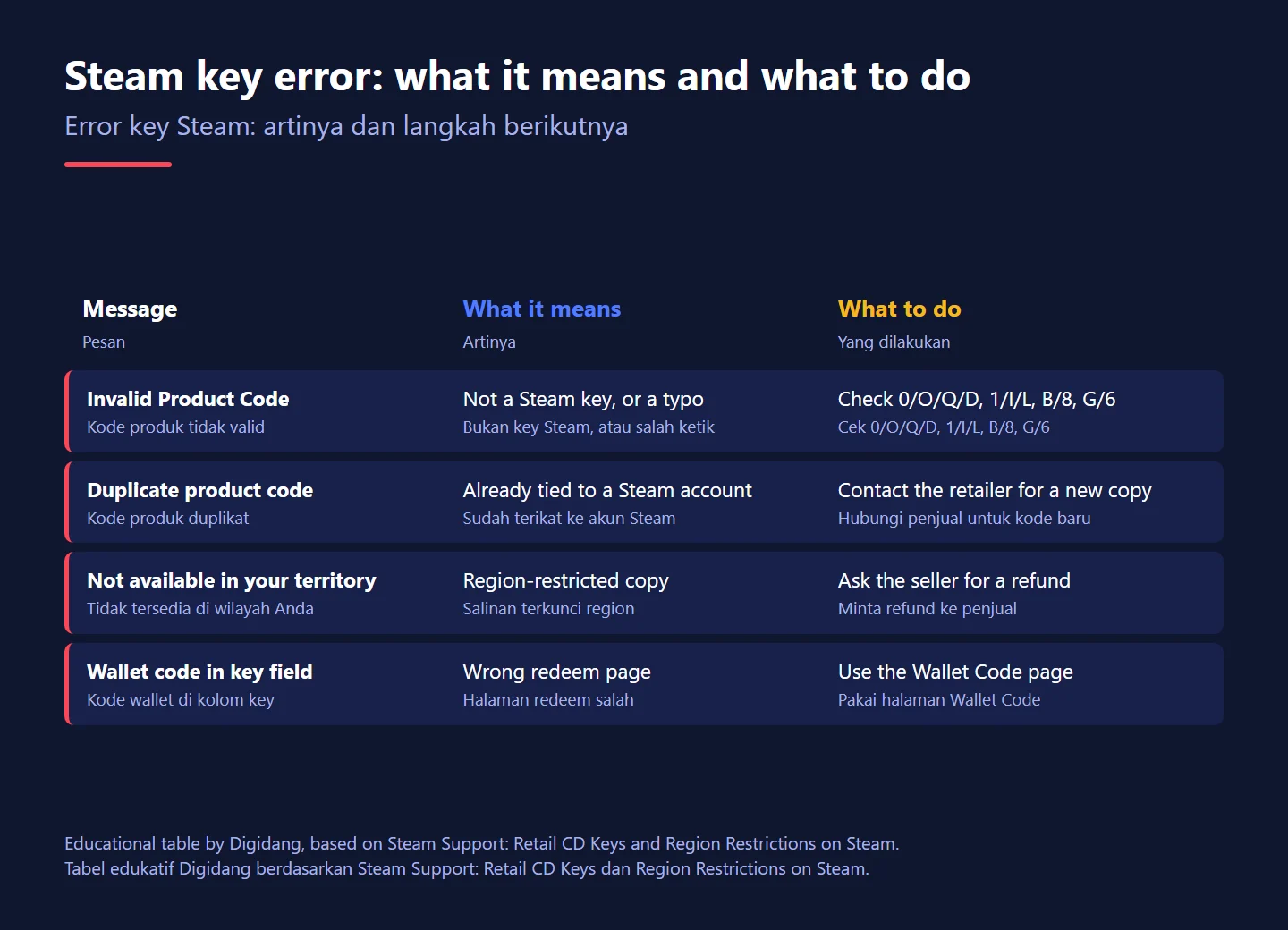
- Invalid product code. Double check for typos, and remember the code uses zeros and the letter O carefully. Copy and paste when possible to avoid mistakes.
- This code has already been activated. The code was used before, possibly by someone else. Contact the seller for proof of a fresh, unused key.
- This product is not available in your region. Some codes are region locked. Check the region restriction before buying, and only buy codes intended for your country. Valve explains the rules on its Region Restrictions on Steam page.
- You already own this product. The game is already in your library, so the code cannot be applied again to the same account.
- Activation limit reached. Steam temporarily limits how many codes you can try in a short time. Wait a while and try again.
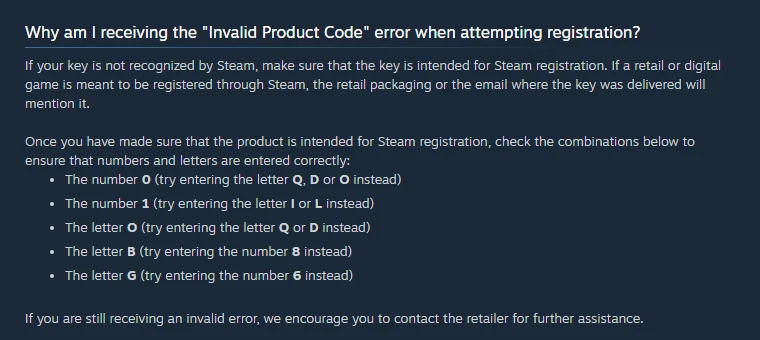
Steam Support's Retail CD Keys page lists the characters most often mixed up when you see an Invalid Product Code error. The number 0 may really be the letter Q, D or O. The number 1 may be the letter I or L. The letter O may be Q or D, the letter B may be the number 8, and the letter G may be the number 6. If every combination still fails, Valve suggests contacting the retailer.
Two other messages have different fixes. A duplicate product code error means the key is already tied to another Steam account and cannot be registered again. If you are sure you never used it, ask the seller for a new copy. A "Game not available in your territory" error appears when a region-locked key is used in another region. According to Region Restrictions on Steam, Steam Support cannot refund keys bought from third-party retailers, so the refund goes through the seller.
How to Buy Game Codes Safely
The safest codes come from official stores and reputable, well reviewed sellers. Extremely cheap codes from unknown sources can be risky, because they may be region locked, already used, or obtained through fraud, which can lead to revoked games. Always read seller reviews, check the region of the code, verify that the code is genuine, and prefer sellers with clear refund or replacement policies. A slightly higher price from a trusted source is worth the peace of mind.
Keep your purchase receipt and the code itself until you have successfully activated and launched the game. If a code fails, that proof helps you request a replacement. Treat your codes like cash: do not post them in public chats or screenshots, since anyone who sees the full code can try to claim it first.
Tips for a Smooth Activation
Before redeeming, make sure your Steam account is secure with Steam Guard enabled, because activated games are tied to your account for good. Activate codes promptly rather than letting them sit, so you can confirm they work while the purchase is still recent. If you buy during a sale or bundle event, organize your codes in a note so you do not lose track of which ones you have already used.
Finally, keep your Steam client updated and your internet connection stable during activation. A dropped connection mid process rarely causes problems, but a stable line makes the experience quick and frustration free. With these habits, redeeming codes becomes a simple routine you can do in seconds.
After Activation: Keep the Key as Proof
A successful activation is not the end of the story. According to the Retail CD Keys page, a registered key acts as proof of purchase for the game and proof of ownership for your Steam account. Steam Support may ask for it when you need to show that an account is yours. Store the key and your receipt somewhere safe, not in a photo gallery that is easy to share by accident.
There is one important limit. Valve notes that digital keys which are not part of a game's physical packaging cannot be used as proof of account ownership. Account security still depends mostly on a strong password and Steam Guard, and our guide to securing game accounts with 2FA walks through the setup.
If your code turns out not to be a Steam key, for example a key for another launcher, you can still add that game to your library as a non-Steam shortcut. This only makes launching easier and does not turn the key into a Steam license.
Why You Should Not Use a VPN for Region-Locked Codes
When a key is rejected because of region, a VPN can look tempting. The Region Restrictions on Steam page says that using a proxy or VPN to disguise your location is strictly against the Steam Terms of Service and may result in restrictions on your account. Steam also shows a warning when the redeem location does not match your past account activity.
The safe route is to match the region from the start. For keys sold by other retailers, Valve says region rules vary by publisher and should be noted on the packaging or product page, so ask the seller when it is unclear. Our guides to digital code regions and refunding digital games go deeper.
Game Codes vs Wallet Codes and Gift Codes
Not every code on Steam unlocks a specific game. It helps to know the difference so you redeem each one correctly. A game code, or product key, activates a particular title and adds it to your library. A Steam Wallet code, on the other hand, adds funds to your account balance that you can spend on any game, downloadable content, or item later. Wallet codes and Steam gift cards are redeemed on a separate page, Redeem a Steam Gift Card or Wallet Code, and the balance rules are explained on Valve's Steam Wallet support page. The result is different: one gives you a game, the other gives you spending credit.
There are also digital gift copies, where a friend buys a specific game on the Steam store and sends it to your account. It arrives as a gift notification rather than a typed code, and you accept it from that notification. When you buy from a store, read the product description carefully so you know whether you are getting a game key, a wallet top up, or a gift, because the redemption path and the end result differ for each type.
This table sums up the three code types people mix up most and where each one is redeemed.
| Type | Where to redeem | Result on your account |
|---|---|---|
| Game key (CD key) | Activate a Product on Steam in the client, or the activation page in a browser | The game is added to your library for good |
| Steam Wallet code or gift card | The Redeem a Steam Gift Card or Wallet Code page | Your Steam Wallet balance goes up |
| Digital gift from a friend | The gift notification on your Steam account | The game joins your library once accepted |
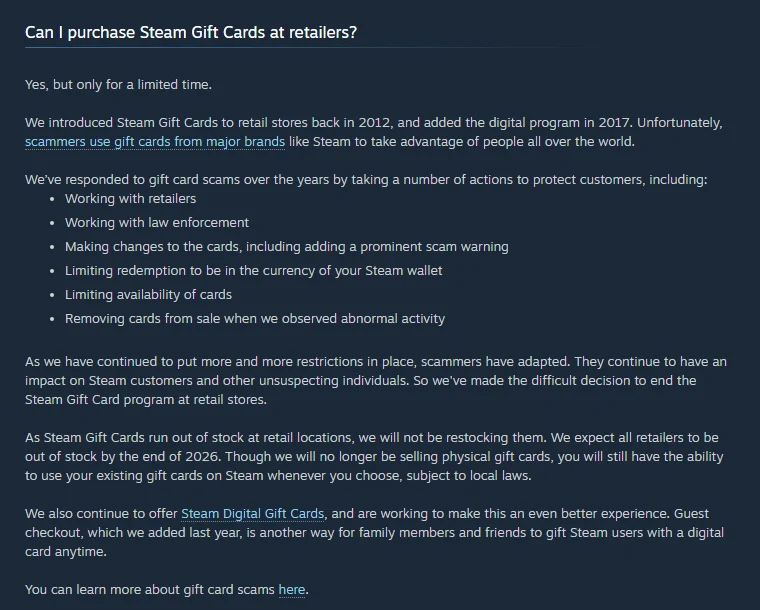
One change matters if you buy physical cards. On its Steam Wallet page, Valve announced it is ending the Steam Gift Card program at retail stores because of gift card scams, and expects retailers to be out of stock by the end of 2026. Existing cards can still be used, and digital gift cards are still sold. Wallet funds also cannot be moved to another account. Compare options in our Steam Wallet voucher price guide or the Steam Wallet Code 10 USD listing.
Want the basics of digital licenses first? Read how digital game keys work and digital vs physical games.
FAQ
How do I avoid typing mistakes when entering a Steam code?
Copy and paste the code instead of typing it by hand. Steam keys are printed in capital letters, and the number zero and the letter O are easy to confuse when you type them yourself.
Can I redeem a Steam code more than once?
No. Each code can normally be activated only once. After it is redeemed, the game is permanently tied to the account that activated it.
Can I move a redeemed game to another account?
No. Once a code is activated, the game stays on that account and cannot be transferred. Always sign in to the correct account before redeeming.
Why does my code say it is not available in my region?
Some codes are region locked and only work in the country they were intended for. Check the region before buying and choose a code that matches your location.
What should I do if my code does not work?
First check for typos, then confirm the code is for your region and has not been used. If it still fails, contact the seller with your receipt to request a replacement.
Is it safe to buy cheap game codes online?
It can be, if you buy from reputable sellers with good reviews and clear policies. Be cautious with extremely cheap codes from unknown sources, as they may be region locked, used, or fraudulent.
What does a duplicate product code error mean on Steam?
It means the key is already tied to another Steam account and cannot be registered again. If you are sure you never used it, contact the seller for a new copy, as the Retail CD Keys page on Steam Support advises.
Can I use a VPN to redeem a key from another region?
No. Steam Support says using a proxy or VPN to disguise your location is against the Steam Terms of Service and may lead to restrictions on your account. Choose a key whose region matches your account from the start.
Can Steam Support refund a key I bought from another store?
No. According to the Region Restrictions on Steam page, Steam Support cannot refund keys bought from third-party retailers. Refunds or replacements are handled directly by the seller you bought from.
Digidang Team
Gaming enthusiast and marketplace expert sharing tips, guides, and the best gaming deals.